
JJWin Update Guide – How to Update the Latest JWin App Safely The
JJWin Update Guide is one of the easiest ways to enjoy a smooth and reliable game experience. Every new version is designed to improve performance, fix known issues, and introduce useful enhancements. If you’re still using an older version, you may notice slower loading times, occasional errors, or missing features that are available in the latest release.
This guide explains how to update the JWin app safely and correctly. Whether you’re updating for the first time or simply installing the newest version, the process is straightforward and only takes a few minutes.
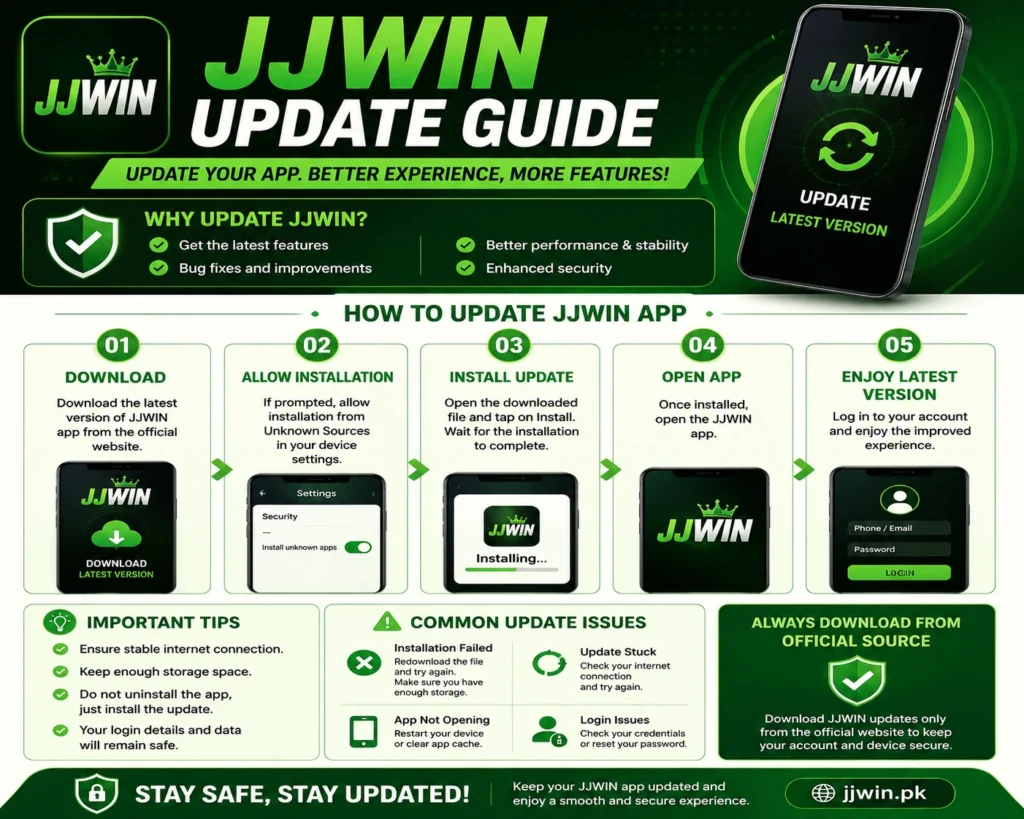
Why Updating JWin Is Important
Many users ignore app updates because they believe their current version works well enough. However, regular updates play an important role in improving the overall experience.
Here are some of the main reasons to keep your JWin app updated:
- Enjoy the latest features and improvements.
- Receive important bug fixes that improve stability.
- Benefit from better compatibility with newer Android devices.
- Improve loading speed and overall performance.
- Reduce the chances of unexpected crashes or errors.
- Receive security improvements that help protect your account.
Installing updates regularly ensures you’re using the most reliable version of the application.
Things to Check Before Updating
Before downloading the latest version, take a few moments to prepare your device. A little preparation can prevent installation problems and make the update process smoother.
Check Your Internet Connection
A stable internet connection helps ensure the download completes successfully. If the connection is interrupted, the installation file may become incomplete.
Make Sure You Have Enough Storage
Every app update requires some free storage space. If your phone is running low on storage, remove unnecessary files or unused apps before installing the update.
Keep Your Login Information Ready
Most updates keep your account information safe, but it’s always a good idea to remember your username, phone number, or password before updating.
Charge Your Device
Although the update doesn’t take long, it’s recommended to have at least 30% battery to avoid interruptions during installation.
Step-by-Step JJWin Update Guide
Updating the JWin app is simple if you follow the correct steps.
Step 1: Download the Latest Version
Download the newest version of the JWin app from the official source. Avoid downloading installation files from unknown or suspicious websites, as they may contain outdated or modified versions.
Step 2: Allow App Installation
If you’re installing an APK file manually, Android may ask you to allow installations from your browser or file manager. Grant permission only for the installation process and disable it afterward if you prefer additional security.
Step 3: Install the Update
Open the downloaded file and tap the Install button. The installation usually finishes within a minute, depending on your device.
Step 4: Open the Updated App
After the installation is complete, launch the app. Log in using your existing account details if required and check that everything is working correctly.
Benefits of Using the Latest Version
Updating isn’t just about getting a newer version number. It also helps improve your daily experience with the app.
Some common benefits include:
- Faster startup time
- Better app stability
- Improved user interface
- Enhanced compatibility with new Android updates
- Reduced loading issues
- Smoother navigation
- Better overall reliability
Common JJWin Update Problems and How to Fix Them
Although updating the JWin app is usually quick and simple, some users may face minor issues during the process. Most of these problems can be solved in just a few minutes without needing advanced technical knowledge.
Installation Failed
If the app does not install, the downloaded file may be incomplete, or your device may not have enough available storage.
Try these solutions:
- Download the latest installation file again.
- Delete unnecessary files to free up storage.
- Restart your phone before trying again.
- Make sure your Android version is compatible with the latest release.
The App Won’t Open After Updating
Sometimes an app may not open immediately after an update.
You can fix this by:
- Restart your device.
- Clear the app cache from your phone settings.
- Check that the installation completed successfully.
- Reinstalling the latest version if the issue continues.
Slow Performance
If the app feels slower than expected after updating, it may simply need a fresh restart.
Close all background applications, restart your phone, and launch JWin again. This often improves loading speed and overall performance.
How to Confirm the Update Was Successful
Once the installation is complete, open the JWin app and make sure everything is working as expected.
You can confirm the update by checking:
- The app opens without errors.
- The interface looks updated or includes new features.
- Navigation feels smooth and responsive.
- Login works normally.
- Previously reported issues have been resolved.
If all of these checks are successful, your update has been completed correctly.
Tips for a Smooth Experience
Keeping your app updated is only one part of maintaining good performance. A few simple habits can help ensure the app continues to run smoothly.
- Install new updates as soon as they become available.
- Keep your Android operating system updated.
- Maintain enough free storage on your device.
- Use a reliable internet connection during downloads.
- Restart your phone occasionally to improve performance.
- Download installation files only from trusted sources.
Following these practices can help reduce common errors and improve your overall experience.
FAQS
Does updating JWin delete my account?
No. Updating the app normally does not remove your account or personal information. Simply log in using your existing account details after the update if required.
Is the latest update free?
Yes. App updates are generally available without any additional cost.
Do I need to uninstall the old version first?
In most cases, no. The latest version installs over the existing app while keeping your settings and account information intact.
How often should I update the app?
It’s recommended to install updates whenever a new version is released. Regular updates provide bug fixes, performance improvements, and compatibility with newer Android devices.
What should I do if the update keeps failing?
Restart your device, check your internet connection, ensure you have enough storage, and download a fresh copy of the installation file before trying again.
Final Thoughts
Updating the JWin app is a simple step that helps improve performance, stability, and compatibility with the latest Android devices. New updates are designed to fix known issues, introduce useful improvements, and provide a smoother experience for users.
Before installing any update, make sure your device has enough storage and a stable internet connection. Always use a trusted source when downloading the latest version, and keep your login details available in case you need to sign in again after the installation.
By keeping your JWin app up to date, you can enjoy the newest features, better reliability, and a more seamless user experience every time you open the app.
 Discover Ideas That Make a Difference